In this Topic Hide
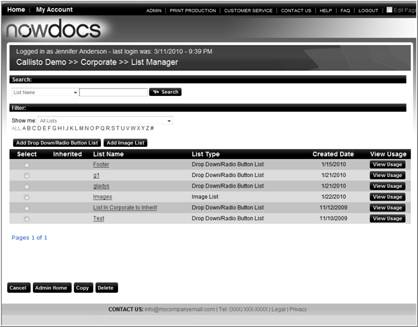
Account Administrators can create and save lists that can be reused in the web forms for drop down lists, radio button lists, and images. This provides the ability for an admin to create commonly used lists only once and reuse it on many web form fields and products. It also allows the ability to upload the list via a data file and zip file (images) for quick setup.
Use the following steps to add a dropdown/Radio Button list:
Create a list file saved in CSV format. The first column is the name of the list item, the second column is the value to be displayed. For example, if a state abbreviation list is desired, the Name is New York and the is NY.
Click the Admin link from the NowPrint homepage.
Click the Edit link under the List Manager option.
Click the add Drop Down/Radio Button List Button.
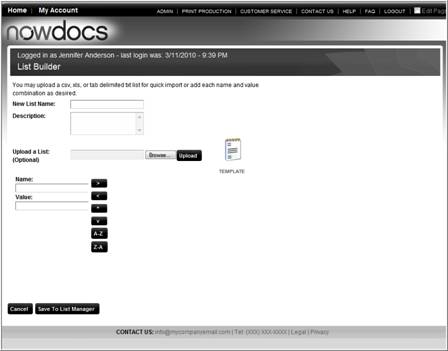
Enter a New List Name.
Enter a Description for the list.
Click the Browse button to locate the list saved on your computer.
Click the Upload button.
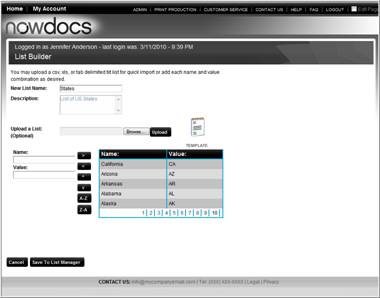
Verify the list data.
Click the Save to List Manager button.
 Click here to watch a short video on Creating
a Dropdown or Radio List
Click here to watch a short video on Creating
a Dropdown or Radio List
Image lists can be bulk loaded or uploaded individually.
Use the following steps to add a dropdown/Radio Button list:
Create a list file saved in CSV format. The first column is the image name, the second column is name to be displayed, the third column is the keyword for searching.
Click the Admin link from the NowPrint homepage.
Click the Edit link under the List Manager option.
Click the Add Image List button.

Create and list and images individually.
New List Name
Description
Browse
Image Name
Searchable keyword
Upload and add
Mass Upload list and images:

Click the Browse button to upload the list.
Click the Browse button to upload a zip file of the images.
Click the Upload List button.
Click
here to watch a short video on Uploading an Image List