In this Topic Hide
Order workflows are the configurable processes through which users procure print. Users choose their desired order workflow from the Order Entry main screen at the beginning of the ordering process.
Order workflows include:
Document Submission. This order workflow allows users to upload files directly from their personal computer or system network and configure print options as desired.
Catalogs/Personalized Products. Catalogs contain preconfigured documents and personalized products that are available for ordering in a shopping environment where they can be browsed, previewed, and procured.
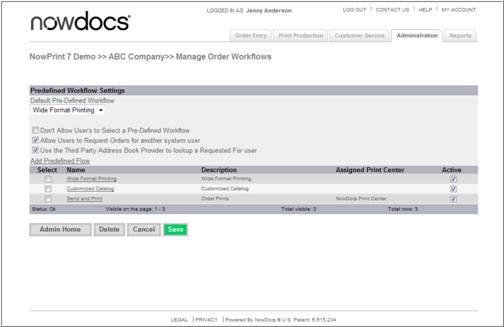
Active defines if the workflow is displayed. To make active or inactive, click the active checkbox and click Save.
This order workflow allows users to upload files directly from their personal computer or system network and configure print options as desired.
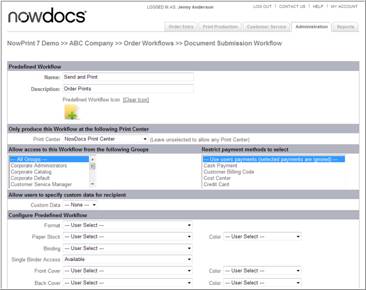
Preference |
Description |
Display Pricing to the Buyer |
Displays pricing to the buyer as they make their product selections.
|
Show only order totals on the receipt |
Will not itemize pricing. The total order value will be shown on the receipt the cost of the items ordered will not be itemized.
|
Require orders to be named |
Require users to specify a name for the order.
|
Enable print buyer to select print center |
Allow users to select from a list the print center to which the order will be routed.
|
Restrict Print Center to buyer region |
If print center regions have been defined, in Step 1 of the ordering process show only the print centers in the user's region.
|
Enable order templates |
Allow users to select an order template which defines specific production characteristics for the order.
|
Require print buyer to approve preview |
Do not allow users to proceed to Step 2 until they have selected a checkbox to confirm that they have previewed the files for accuracy.
|
Enable production charge items for Operators/CSR roles |
Allows the addition of production charge items when an administrator or CSR is ordering on behalf of another user. The buyer will not see these options.
|
Enable special instructions |
Allow users to enter special instructions for the order.
|
Enabled print buyer to select email notifications for recipient(s) |
Allow notification emails to be sent to order recipients.
|
Enable Print Buyers to upload files |
Allow users to upload files from their system.
|
Enable Personal Filing Cabinet for Print Buyers |
Allow users to select files from a file cabinet. |
Enable print buyer to bypass PDF conversion |
Allows buyer to skip conversion process not creating a PDF file.
|
Enable network file paths |
Allow users to specify a network file path for the order to be available as a link from which the print center will retrieve the file for printing.
|
Enable Hardcopy drop-off |
Do not allow users to submit documents in hard copy (paper) format by physically taking them to the print center.
|
Enable page exceptions |
Allow users to indicate that specific pages in a file should be printed differently from the rest.
|
Enable mixed page sizes for combined documents |
In Step 2 of the ordering process |
Enable print buyer to add tabs |
Allow users to add tabs and dividers.
|
Enable buyer to change finished size |
Allow users to select the finished size for their document.
|
Enable unique print options for each recipient |
Allow users to change the configuration of the order per recipient.
|
Enable quantity per recipient instead of per document |
Allow users to specify the number of copies to be sent to each recipient.
|
Enable cover pages |
Allow users to include cover pages for order recipients.
|
Enable delivery time selection |
Allow users to specify a delivery time.
|
Limit delivery address to print buyer |
Do not allow buyer to select additional delivery addresses.
|
Enable recipient list upload |
Allow users to add multiple recipients to an order by uploading a CSV file.
|
Enable print buyer to select delivery date and time |
Allow users to indicate the date and time by which they would like the order delivered.
|
Enable the print buyer to be the default recipient for orders |
The buyer is automatically set as the recipient of any order they create as opposed to selecting themselves as the user as a recipient.
|
Enable unique special instructions per recipient |
Allow users to indicate special instructions for each recipient.
|
Enable proof requests |
Allow users to request a hard copy proof of the order before it is produced.
|
Enable print buyer to select proof date and time |
Allow users to specify the date and time by which they would like to receive a proof.
|
Enable print sample recipient |
Enables the buyer to set a different recipient for a sample or proof of the order.
|
This workflow is not displayed on the user home page |
Does not display workflow on the homepage |
This workflow is framed within another site |
Used in cases when a user is “punching out” from another website. The UI behaves differently.
|
Product preview mode |
Set the type of preview available to the customer. Options are Do not display preview, document level preview, and full page preview.
|
Use the Advanced Finishing Options: Order Level fields to indicate whether specific finishing options are available in this workflow at the order level (i.e., for all documents in the order as a whole). The Note field beside some of the finishing options can be used to enter any special notes or instructions.
Use the Document Level Finishing Options fields to indicate whether specific finishing options are available in this workflow at the individual document level. The Note field beside some of the finishing options can be used to enter any special notes or instructions.
Click the Save button.
Catalogs contain preconfigured documents (Filing Cabinet documents) and personalized products that are available for ordering in a shopping environment where they can be browsed, previewed, and procured.
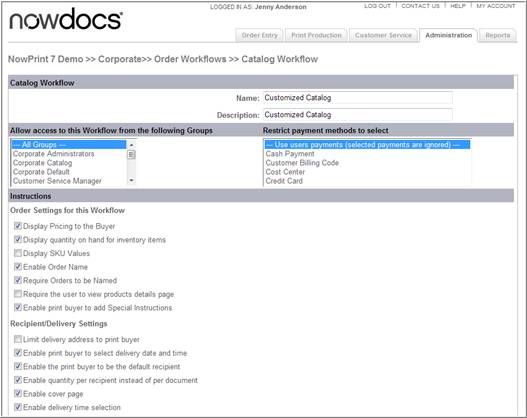
Enter a name for the order workflow in the Name field.
Enter a description of the order workflow in the Description field. This is the label for the order workflow that users will see on the Order Entry screen.
Use the Allow access to this Workflow from the following Groups drop-down menu to specify which groups of users are permitted access to this workflow. If you would like all users to have the ability to access this workflow, select All Groups.
Use the checkboxes in the Instructions section to configure the interface users will see during this workflow. Select or clear each checkbox as desired for each option:
Preference |
Description |
Display pricing to the buyer |
Displays pricing to the buyer as they make their product selections.
|
Display quantity on hand for inventory items |
Show the available quantity of each item. |
Display SKU values |
Display the SKU for the filing cabinet item.
|
Enable Order Name |
Allows users to enter a name for their order.
|
Require orders to be named |
Require users to specify a name for the order.
|
Require the user to view products details page |
Do not allow users to proceed to Step 2 until they have selected a checkbox to confirm that they have previewed the files for accuracy.
|
Enable print buyer to add special instructions |
Allow users to indicate special instructions. |
Limit delivery address to print buyer |
Do not allow buyer to select additional delivery addresses.
|
Enable print buyer to select delivery date and time |
Allow users to indicate the date and time by which they would like the order delivered.
|
Enable the print buyer to be the default recipient |
The buyer is automatically set as the recipient of any order they create as opposed to selecting themselves as add the user as a recipient.
|
Enable quantity per recipient instead of per document |
Allow users to specify the number of copies to be sent to each recipient.
|
Enable cover page |
Allow users to include cover pages for order recipients.
|
Enable delivery time selection |
Allow users to specify a delivery time.
|
Enable proof requests |
Allow users to request a hard copy proof of the order before it is produced.
|
Enable print buyer to select proof date and time |
Allow users to specify the date and time by which they would like to receive a proof.
|
Enable external link for recipient selection |
Enables external recipients to be selected. |
This workflow is not displayed on the user home page |
Does not display workflow on the homepage. |
This workflow is framed within another site |
Used in cases when a user is “punching out” from another website. The UI behaves differently.
|
This workflow allows users to order Oversized and/or Wide format Documents.
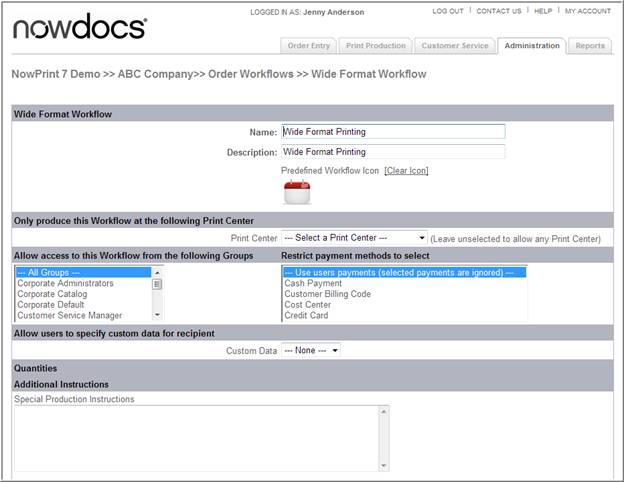
Enter a name for the order workflow in the Name field.
Enter a description of the order workflow in the Description field. This is the label for the order workflow that users will see on the Order Entry screen.
Use the Allow access to this Workflow from the following Groups drop-down menu to specify which groups of users are permitted access to this workflow. If you would like all users to have the ability to access this workflow, select All Groups.
Use the checkboxes in the Instructions section to configure the interface users will see during this workflow. Select or clear each checkbox as desired for each option:
Preference |
Description |
Display Pricing to the Buyer |
Displays pricing to the buyer as they make their product selections.
|
Show only order totals on the receipt |
The total order value will be shown on the receipt the items ordered will not be itemized.
|
Require orders to be named |
Require users to specify a name for the order.
|
Enable print buyer to select print center |
Allow users to select from a list the print center to which the order will be routed.
|
Restrict Print Center to buyer region |
If print center regions have been defined, in Step 1 of the ordering process show only the print centers in the user's region.
|
Enable order templates |
Allow users to select an order template which defines specific production characteristics for the order.
|
Require print buyer to approve preview |
Do not allow users to proceed to Step 2 until they have selected a checkbox to confirm that they have previewed the files for accuracy.
|
Enable production charge items for Operators/CSR roles |
Allows the addition of production charge items when an administrator or CSR is ordering on behalf of another user. The buyer will not see these options.
|
Enable special instructions |
Allow users to enter special instructions for the order.
|
Enabled print buyer to select email notifications for recipient(s) |
Allow notification emails to be sent to order recipients.
|
Enable Print Buyers to upload files |
Allow users to upload files from their system.
|
Enable Personal Filing Cabinet for Print Buyers |
Allow users to select files from a file cabinet. |
Enable print buyer to bypass PDF conversion |
Allows buyer to skip conversion process not creating a PDF file.
|
Enable network file paths |
Allow users to specify a network file path for the order to be available as a link from which the print center will retrieve the file for printing.
|
Enable Hardcopy drop-off |
Do not allow users to submit documents in hard copy (paper) format by physically taking them to the print center.
|
Restrict to large format paper size(s) |
This does not allow a user to upload a standard size and then increase the size to wide format. The buyer must upload a wide format document.
|
Enable page exceptions |
Allow users to indicate that specific pages in a file should be printed differently from the rest.
|
Enable mixed page sizes for combined documents |
In Step 2 of the ordering process.
|
Enable print buyer to add tabs |
Allow users to add tabs and dividers.
|
Enable unique print options for each recipient |
Allow users to change the configuration of the order per recipient.
|
Enable quantity per recipient instead of per document |
Allow users to specify the number of copies to be sent to each recipient.
|
Enable cover pages |
Allow users to include cover pages for order recipients.
|
Enable delivery time selection |
Allow users to specify a delivery time.
|
Limit delivery address to print buyer |
Do not allow buyer to select additional delivery addresses.
|
Enable recipient list upload |
Allow users to add multiple recipients to an order by uploading a CSV file.
|
Enable print buyer to select delivery date and time |
Allow users to indicate the date and time by which they would like the order delivered.
|
Enable the print buyer to be the default recipient for orders |
The buyer is automatically set as the recipient of any order they create as opposed to selecting themselves as the user as a recipient.
|
Enable unique special instructions per recipient |
Allow users to indicate special instructions for each recipient.
|
Enable proof requests |
Allow users to request a hard copy proof of the order before it is produced.
|
Enable print buyer to select proof date and time |
Allow users to specify the date and time by which they would like to receive a proof.
|
Enable print sample recipient |
Enables external recipients to be selected.
|
This workflow is not displayed on the user home page |
Does not display workflow on the homepage.
|
This workflow is framed within another site |
Used in cases when a user is “punching out” from another website. The UI behaves differently.
|
Advanced Finishing Options: Order, Document or Binder level Options
|
This area allow you to select which finishing option are available for user selection during the workflow. Finishing items not set to Operator Access Only will appear. Items set to Required will be included in orders placed with this workflow –users will not be able to deselect.
|