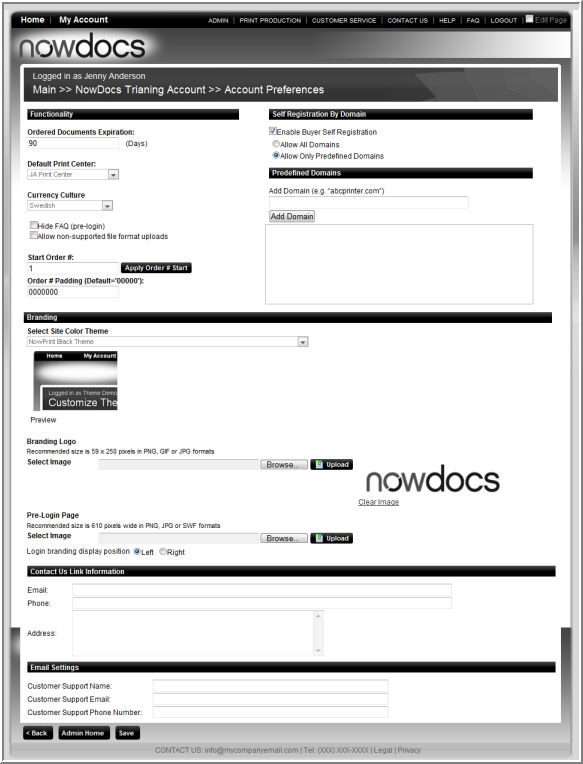
The functional settings screen allows you to modify the Corporate Account preferences. There are many Corporate Account Preferences that also occur as Workflow Preferences. In the event that a Corporate Account Preference conflicts with a like Workflow Preference, the Corporate Account Preference takes precedence.
Corporate Account administrators have access to the following Functionality Settings:
Function |
Description |
Order Document Expiration
|
Dictates how many days after an order is marked complete that the file(s) associated to the order will be deleted.. When no entry is present documents will be kept forever.
|
Default Print Center |
The default print center for order submission for the Corporate Account. When not overridden by a user or workflow preference this is the print center that will be used by orders placed from the account.
|
Currency Culture |
Currency culture defines how NowPrint handles monetary values. Whether it should use decimals (as in the IS) or commas to separate values.
Below are the cultures, symbols that will be displayed and example format:
|
Hide FAQ (prelogin) |
Removes the FAQ link from the login screen. |
Allow non-supported file format uploads |
Allow the upload of application files that are not supported for automated PDF conversion. |
Start Order # |
Default value displays the current number of orders submitted for this Account. This feature is useful when migrating from another system to maintain your current order numbers. Entered value must be higher than the current value. |
Order # padding (default ‘00000’ |
This overrides the default order prefix and will append to the beginning of the order number. |
| Enable Buyer Self Registration | When enabled, allows the ability for users to access self registration. Controls whether self registration link shows up on the login screen. |
| Allow Only Predefined Domains | Only users whose email matches the domain will be allowed to self register. Enter the domain “yahoo.com”, and it will appear in the restriction list. |
| Select the Desired Theme | Update the "skin" or theme of your site. Select a basic theme from the dropdown list box. To view an image of the theme, click the View button. |
| Branding Logos | Click the Browse button to locate a logo to replace the existing logo(s) in the upper left, center, or right of the screen. Click the Upload button.
|
Pre-login Page |
Click the Browse button to modify the image displayed on the pre-login page. Click the Upload button.
|
Contact Us Link Information
|
Enter the information to be displayed when the buyer clicks on the Contact Us link. |
Email Settings |
Variables can be set-up to be inserted within email notification messages as appropriate. Enter the desired email variables in the desired fields. |